To filter out, or jump over, irrelevant questions, use conditional branching. Please note, that for the current version, conditions cannot be set for the section called “Essay fields”, and matrix type question. Questions of this type can be filtered out by conditions set for other questions.
The conditional branching functionality is accessed by editing the survey questions. We recommend that you set up all your survey questions first, and then the conditional branching. This is because the conditions are set up to filter out questions following the current question. If there are no following questions, then you will not be able to filter out any. Here is an overview of the steps to use this functionality:
- Create survey
- Add all questions
- Open up questions, and start adding the conditions by clicking on the "conditional branching" button at the bottom of the question-screen. For each question, there is a condition-list, which will initially be empty. Click on "new" to create a new condition for this question. Any number of conditions can be added per question.
- Test the survey, by responding a few times, to make sure it behaves the way you expected.
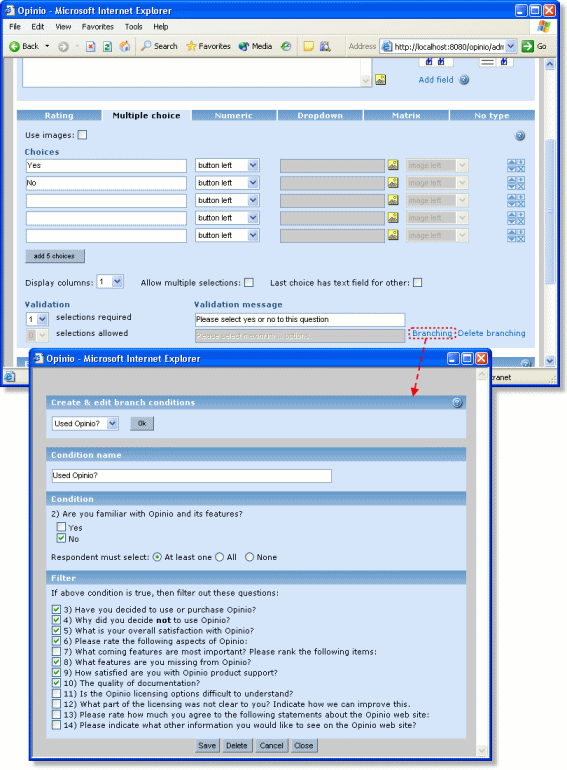
The Branching condition: Each condition-screen is divided into 3 parts:
- The condition name
The condition. Based on the question type (rating, multiple choice etc.), the condition evaluates to true of false. If the respondent selects the same values for this question, as defined in this condition, it will trigger, and apply the filter. For some of the question types, there are options on how to evaluate the input:
- Multiple choice: options are "all", "one" and "none". "all" means that the respondent must select at least all the options selected in this condition. "one" means that the respondent must select at least one of the options in the condition. "none" means that the condition will be true if the respondent selects none of the options selected in the condition. NOTE: using the "all" option for multiple choice, requires some thought. If you select more than one choice, then you must make sure the respondent has the possibility to select more than one choice in the question.
- Matrix: The options are exactly the same as for Multiple choice. But be careful: using the "all" option for matrix, you should not select more than one option per row, because the respondent does not have the option of selecting more than one, unless the matrix question is of type "select any cell".
- Rating: The options are "one" and "none". These options mean the same as for the respective multiple choice condition options. "all" is not relevant, because it is not possible to select more than one value in a rating question.
- The filter. Depending on the above condition is true or false, the questions selected in the filter are not seen by the respondent. IMPORTANT: If the filtered questions are on the same page is the question you are defining conditions for, the respondents will see these questions. You must make sure that the filtered out questions are on subsequent pages.
Advice: Opinio lets the survey creator add several conditions per question. Each condition is handled completely independent of each other. This means that if several conditions are added, especially for a single question, it may cause a condition to always trigger for this question no matter what the respondent's input will be. Setting up the conditions require some thought, and also some testing to see if the conditions behave as expected. Using conditional branching is like "programming the survey", and requires verification.