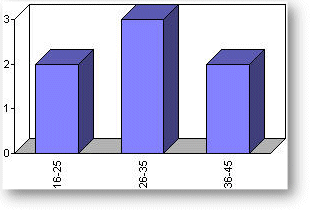
To add an element, click "add element" from the report page.
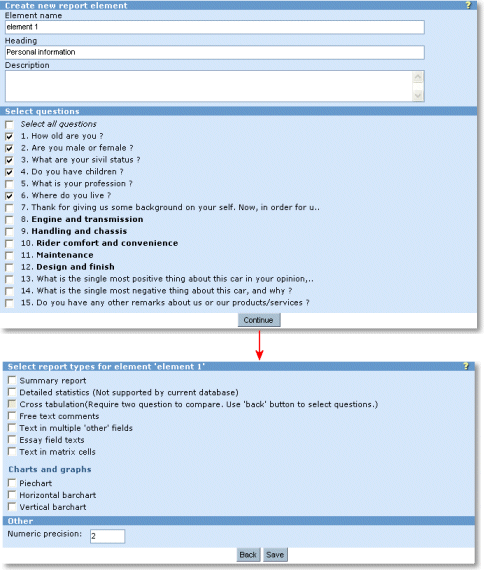
Enter a name, heading and description for the report element and the survey questions you want to include. Select continue to go to the next page.
On the next page you select the report types you want to apply to the questions you selected in this element. These are
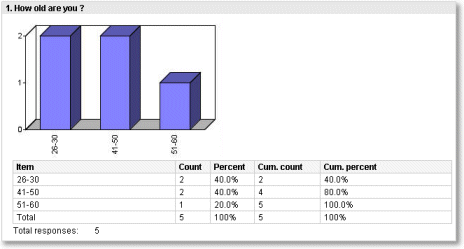
Summary report. produces summary statistics for each question in the element. Example, with a chart:
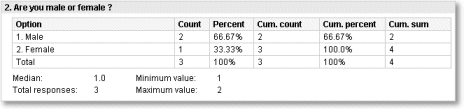
Detailed statistics. produces detailed/in depth statistics for each question in the element. This report type may not be available, depending on the database you are running. It is not supported for Hypersonic SQL (the demo database included with the Opinio distribution). Example, without chart:
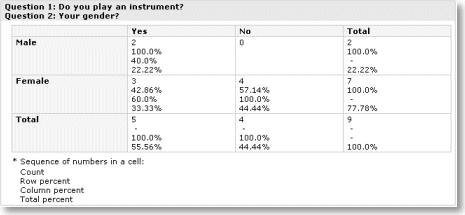
Cross tabulation.
This is a comparison between two questions. This applies only to questions that allows selection between items, but excluding matrix. Take these multiple choice questions, for example:
Do you play an instrument?
- yes
- no
Your gender?
- male
- female
The report may look like this:
- Text listing from free text comments. If you have included "free text comment" boxes in your survey, this option will list the comments for the questions selected in the report element. Each of the answers will be listed along with the respondent id. That way you may also access individual results.
- Text listing from "multiple choice other" field. If you have included a text field for "other" in multiple choice, this option will list all the comments entered by the respondents for this field.
- Text listing from essay field texts. Check this report type to show comment listing for text essay fields.
- Text listing from text fields in matrix cells. Select this report type if you want to list all the comments in the matrix free-text comment fields. These comments will be listed below the matrix statistics. (reporting of a matrix question will always start by showing the matrix itself, indicating types for each cell. For the cells inside associations, statistics will be shown in the cells.
Chart types. Chart properties can be configured in the WEB-INF/opinio.properties file.
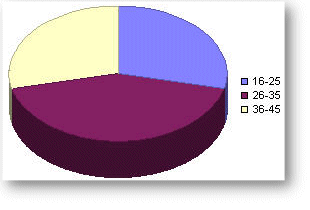
Piechart. Display summaries for each question (or essay field, or matrix cell), if it applies, as a piechart. It may look like this:
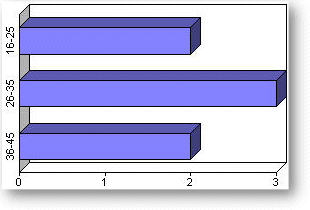
Horizontal barchart. Display summaries for each question (or essay field, or matrix cell), if it applies, as a horizontal barchart. It may look like this:
Vertical barchart. Display summaries for each question (or essay field, or matrix cell), if it applies, as a vertical barchart. It may look like this: