Use this function to export the response data to a file that can be imported into an external statistical software package. The output from the export function are of the following format:
question-answer 1,question-answer 2, ..., question-answer N
Each question may contain one or more answers of various types. These answers must also be separated by delimiters. Make sure that the field separators does not appear anywhere in the data itself, to prevent Opinio to interpret some of your data as delimiters. The export screen looks like this:
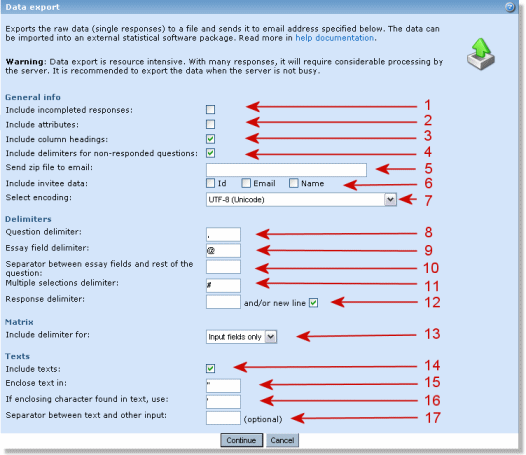
- Include incomplete responses: Includes data from respondents who did not complete the survey. This could be ongoing responses, if the survey is still running, or respondents who quit before they are done.
- Include attributes: Includes respondent attributes, if any. Respondent attributes can be any data stored for each respondent in the OPS_RespondentAttribute database table. Respondent attributes are only available if the survey attribute "Save URL parameters" has been turned on, in that case any "opdata_someparametername" parameters are automatically saved (see the section called “Other survey information”), or if any respondent attributes have been set by a plugin. Default value will be not to include respondent attributes. If included, the respondent attributes will appear in the exported data as one column with the attributes listed alphabetically, having the "Multiple selections delimiter" as a separator.
- Include column headings: Include descriptive headings, like "question 1", for each "data column". This is handy if you are going to import the data into excel, for example. Then you will get these headings on the first row in the spreadsheet.
- Include delimiters for non-responded questions: Use this if you depend on a fixed number of delimiters, whether the respondent answered the questions or not. This is useful if you are importing the data into another software program that depends on each data element being on the same position/column each for each respondent. It is especially important to turn this on, if you have selected the same delimiter for "question delimiter" and the other delimiters (see below).
- Send zip file to email: The exported data will be compressed to a zip-file, and sent as attachment to this email address.
- Include invitee data: When checked, the information about the invitee (id, email address and name) will be included for the respondents that have been answered through an invitation. NOTE: The invitee data will only be included if no type of anonymity is set for the survey.
- Select encoding: Choose your respective language encoding (see language encoding).
- Question delimiter: Delimiter between each question response.
Essay field delimiter: Delimiter between each essay field response. Remember, you can have many essay fields for a single question. So the response may look like (actual data will of course contain real numbers and texts):
QR1, QR2, ER1@ER2@ER3#QR3
This is the answer to 3 questions, the first two without essay-fields, and the third question with 3 essay fields responses in addition to the question response. In this example, a comma (,) was used as question delimiter, at-sign (@) as Essay field delimiter, and a #-sign as the separator between essay fields and the rest of the question (look below).
- Separator between essay fields and rest of the question: The separator between essay field answers and response to the question.
- Multiple selections delimiter: The separator between data elements in questions where it is possible to select more than one option. For example multiple choice with multiple selections allowed. Another example is a matrix. A matrix may contain many "sub-responses".
- Response delimiter: The delimiter between each survey response. This is newline by default. This is recommended if you need to look at the data - it makes it easier to read.
- Include delimiter for: "All cells" means that all cells and rows in the matrix question will be separated with the delimiter chosen for multiple questions (the only option within Opinio versions before Opinio 5.0). To include delimiter for "Input fields only" means that only the input fields in the matrix will be separated with the same delimiter (learn more about exporting matrixes in the next section about exporting raw data from a matrix question).
- Include texts: The text entered in the free-text comment boxes (free-text question, essay text fields, matrix text fields).
- Enclose text in: By default, the texts will be enclosed in quotes ("...").
- If enclosing character found in text, use: If the text-data contains quotes, it must be replaced by another character (single quote, for example), so that the software importing the data may understand it. The quotes may be necessary because these texts may contain your other separators; comma for example. By enclosing the texts in quotes, Opinio will not look at the data inside, thus ignoring the separators.
Separator between text and other input: The separator between the text and other input, for example:
"...text..."*67
Here the separator is an asterix (*) between the text and the question response (in this case the number 67).